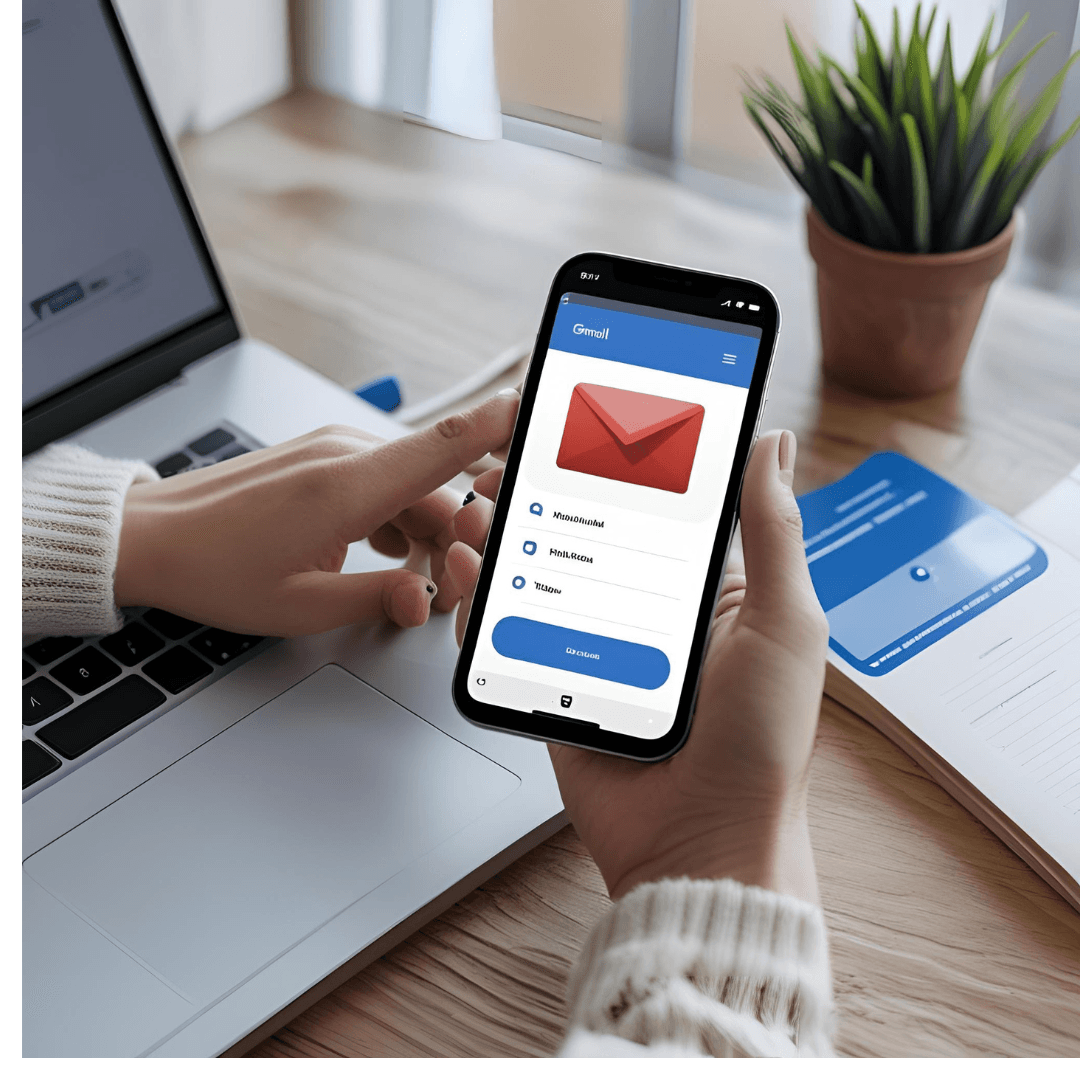
Creating a Gmail ID (a Google Account) is a straightforward process that grants access to Gmail, Google Drive, YouTube, and other Google services. This guide covers creating a Gmail account on both mobile (Android/iOS) and PC in 2025, based on the latest available information. The process is free, takes about 5-10 minutes, and can be done with or without a phone number, though Google may prompt for one for security.
On Mobile (Android/iOS)
- Open the Gmail App Download the Gmail app from the Google Play Store (Android) or App Store (iOS) if not pre-installed. Alternatively, use the device’s Settings app.
- Android: Go to Settings > Passwords & accounts > Add account > Google.
- iOS: Go to Settings > Mail > Accounts > Add Account > Google.
- Start Account Creation Tap “Create account” and select “For my personal use” (or “For work or my business” for professional use).
- Enter Personal Details
- Name: Input your first and last name.
- Birthdate and Gender: Provide your birthdate (used for age verification and account recovery) and select a gender (or “Rather not say”).
- Choose a Username Enter a desired email address (e.g., yourname@gmail.com). Gmail suggests options if your choice is taken. Get creative with numbers, periods, or words (e.g., yourname123@gmail.com). Avoid previously used or reserved usernames.
- Create a Password Enter a strong password (at least 8 characters, mixing letters, numbers, and symbols). Confirm it and tap Next. Tip: Use a password manager like Bitwarden for security.
- Phone Number (Optional) Google may prompt for a phone number for verification and recovery.
- To skip: Tap “Skip” if available (more likely on mobile).
- If required: Enter a number, receive a verification code via SMS, and input it. Alternatively, use a virtual number service like SMS-Activate, though success varies.
- Note: Skipping may limit some features, but you can add a number later.
- Add Recovery Email (Optional) Provide an existing email for recovery (or skip). If you don’t have one, temporary email services like 10-Minute Mail can work.
- Review and Agree Review your details, agree to Google’s Terms of Service and Privacy Policy, and tap I agree.
- Access Your Account Your Gmail account is created! You’ll be taken to the inbox. Add it to other devices or apps as needed.
On PC
- Go to Gmail’s Website Open a browser (Chrome, Firefox, etc.) and visit gmail.com. Use Incognito mode to avoid interference from other signed-in accounts.
- Start Account Creation Click “Create account” and select “For my personal use.”
- Enter Personal Details
- Name: Enter first and last name.
- Birthdate and Gender: Provide birthdate and gender (or “Rather not say”). Click Next.
- Choose a Username Enter a unique email address. If taken, try variations (e.g., yourname2025@gmail.com). Click Next.
- Create a Password Set a strong password (8+ characters, letters, numbers, symbols). Confirm and click Next.
- Phone Number (Optional)
- If prompted, enter a phone number for verification or skip if the option appears. Incognito mode or certain regions (e.g., India, Indonesia) may bypass this.
- Alternatively, use a temporary email for verification if avoiding a phone number.
- Add Recovery Email (Optional) Add a recovery email or skip.
- Review and Agree Confirm details, accept Google’s terms, and click I agree.
- Access Your Account You’re logged into your new Gmail account. Access it via gmail.com or the Gmail app.
Tips for Success
- Username Tips: If your desired username is taken, add numbers, periods, or unique words (e.g., john.doe2025@gmail.com). Avoid weak passwords like “12345678.”
- Security: Enable two-factor authentication (2FA) via Google Authenticator or a recovery email for added protection.
- Privacy: Google may scan emails for spam filtering but doesn’t use content for ads. Consider a new account for sensitive tasks.
- Business Use: For professional accounts, consider Google Workspace for custom domains (e.g., name@yourbusiness.com).
- Troubleshooting: If verification fails, clear browser cookies, try another device, or use a VPN set to regions like India.
- Inbox Management: Use tools like Clean Email to organize your inbox and maintain “inbox zero.”