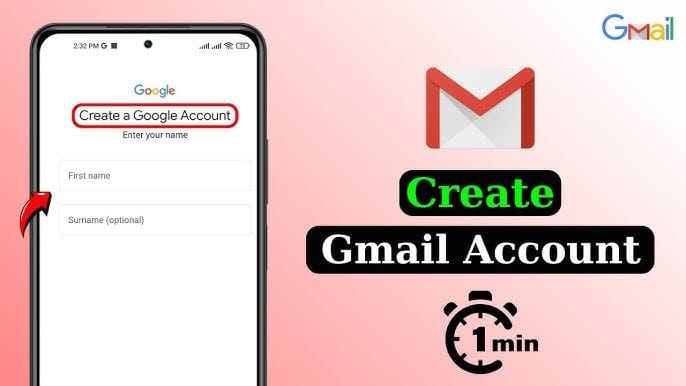
Creating a Gmail account in 2025 is essentially the same as creating a Google Account, as a Gmail account is a Google Account with an associated Gmail email address (e.g., yourname@gmail.com). Below is a concise, step-by-step guide to creating a Gmail account, tailored for 2025, covering desktop and mobile devices, with options to bypass phone verification where possible.
Steps to Create a Gmail Account in 2025
Step 1: Access the Gmail Sign-Up Page
- On Desktop/Laptop:
- Open a web browser (e.g., Chrome, Firefox, Safari) and go to https://accounts.google.com/signup or https://mail.google.com and click Create account.
- If signed into another Google Account, click your profile icon (top-right), select Sign out of all accounts, or use an incognito/private browsing window.
- On Android:
- Go to Settings > Accounts > Add Account > Google > Create Account.
- On iOS:
- Open the Gmail app (download from the App Store) or go to https://accounts.google.com/signup in Safari, then tap Create Account. Alternatively, use Settings > Mail > Accounts > Add Account > Google > Create Account.
- Select For my personal use (or For my child for parental controls, or For work or business for Google Workspace integration).
Step 2: Enter Your Details
- Fill in the sign-up form:
- First Name and Last Name: Enter your name (Last Name is optional).
- Username: Choose a unique username for your Gmail address (e.g.,
yourname@gmail.com). If taken, try variations (e.g.,yourname2025@gmail.com) or accept Google’s suggestions. - Password: Create a strong password (minimum 8 characters, using uppercase, lowercase, numbers, and symbols). Re-enter to confirm.
- Note: You cannot use an existing non-Gmail email (like Outlook) for a Gmail account; this option creates a Google Account without Gmail. For a Gmail address, you must create a new
@gmail.comaddress. - Click Next.
Step 3: Verify Your Phone Number (Optional in Some Cases)
- Google may ask for a phone number to verify your identity:
- Enter a valid mobile number and click Next.
- Enter the 6-digit code sent via SMS and click Verify.
- Bypassing Phone Verification:
- A Skip option may appear if Google detects low-risk activity (e.g., signing up from a trusted device or IP). Try:
- Using an incognito window.
- Signing up via Android Settings (Settings > Accounts > Add Account > Google), which sometimes skips verification.
- Using a different network (e.g., mobile data instead of Wi-Fi).
- Alternatively, use a virtual number (e.g., Google Voice, TextNow), but Google may reject VoIP numbers. Avoid public SMS sites for privacy.
- Regional Note: Phone verification requirements vary by country and Google’s spam detection.
Step 4: Add Recovery Information
- Enter a recovery email (optional but recommended) and your date of birth and gender (gender is optional).
- Click Next.
Step 5: Agree to Terms
- Review Google’s Terms of Service and Privacy Policy. Click I agree.
- Optionally, customize settings (e.g., ad personalization, data sharing) by selecting Manual or choose Express for default settings.
Step 6: Access Your Gmail
- After creation, you’ll be directed to your Gmail inbox or the Google Account dashboard.
- Customize your Gmail:
- Choose a layout (Settings > Inbox > Inbox type).
- Enable dark mode (Settings > Theme > Dark).
- Set up a signature (Settings > General > Signature).
Tips for Success
- Username Tips: Pick a professional or memorable username (e.g.,
jane.doe2025@gmail.com). Avoid random characters for business use. - Security: After setup, enable 2-Step Verification (Google Account > Security > 2-Step Verification) for extra protection.
- Phone Number Issues:
- If Google says the number is used too many times, try a different number or device.
- Use a trusted device or a new IP (e.g., via VPN or mobile data) to reduce verification prompts.
- Multiple Accounts: Create multiple Gmail accounts and switch using the account switcher (profile icon in Gmail).
Troubleshooting
- “Username Taken”: Add numbers or periods (e.g.,
your.name2025@gmail.com). - “Can’t Verify It’s You”: Switch networks, clear browser cache, or try another device.
- Error Messages: If you see “Something went wrong,” wait a few minutes, use a different browser, or check your internet connection.
Why Create a Gmail Account?
- Free Storage: 15GB shared across Gmail, Google Drive, and Google Photos.
- Integration: Access YouTube, Calendar, Docs, and other Google services.
- Features: AI-powered spam filters, labels, filters, and offline access via the Gmail app..