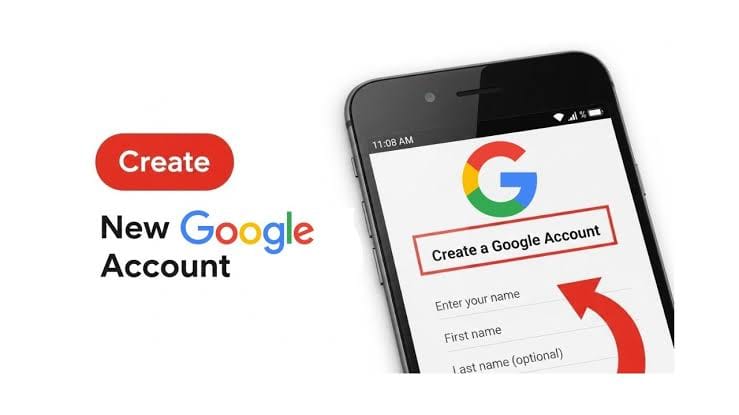
Creating a Google Account in 2025 is a straightforward process that allows you to access Gmail, YouTube, Google Drive, and other Google services. Below is a step-by-step guide to help you create a Google Account, including options for using a Gmail address or an existing non-Gmail email address. The process is similar across devices (desktop, Android, iOS) and can be done with or without a phone number in some cases.
Steps to Create a Google Account in 2025
Step 1: Go to the Google Account Sign-Up Page
- On a Desktop or Laptop:
- Open a web browser (e.g., Chrome, Firefox, Safari) and go to https://accounts.google.com/signup.
- If you’re already signed into another Google Account, click your profile icon in the top-right corner, select Sign out of all accounts, or open an incognito/private browsing window to avoid conflicts.
- On Android:
- Go to Settings > Accounts > Add Account > Google > Create Account.
- On iOS:
- Download the Gmail app from the App Store or visit https://accounts.google.com/signup in Safari, then tap Create Account. Alternatively, go to Settings > Mail > Accounts > Add Account > Google > Create Account.
- Click or tap Create account and select an option from the dropdown:
- For my personal use: For personal accounts.
- For my child: For accounts with parental controls (requires additional setup).
- For work or business: For business accounts, which can integrate with Google Workspace and Google Business Profile.
Step 2: Enter Your Personal Information
- Fill in the required fields:
- First Name and Last Name: Use your real name for personal or professional accounts (Last Name is optional).
- Username: This will be your Gmail address (e.g.,
yourname@gmail.com). If the username is taken, Google will suggest alternatives, or you can add numbers/letters (e.g.,yourname123@gmail.com). - Password: Create a strong password (at least 8 characters, mixing uppercase, lowercase, numbers, and symbols). Confirm the password by re-entering it.
- Alternative Option (Use an Existing Email):
- If you don’t want a Gmail address, click Use your existing email (e.g., for Outlook or Yahoo email). Enter your non-Gmail email address, and Google will send a verification code to that email.
- Click Next.
Step 3: Verify Your Phone Number (Optional in Some Cases)
- Google may prompt you to enter a phone number for verification to prevent spam and enhance security. Enter a valid mobile number, then click Next.
- You’ll receive a 6-digit code via SMS. Enter the code and click Verify.
- Skipping Phone Verification:
- In some cases, a Skip button may appear if Google doesn’t detect suspicious activity (e.g., multiple account creations from the same device/IP). Try signing up in an incognito window or via a mobile device’s settings (e.g., Android: Settings > Accounts > Add Account), as these methods sometimes bypass the phone number requirement.
- Alternatively, use a virtual phone number service (e.g., Google Voice, TextNow) or a temporary SIM card, but note that Google may flag VoIP numbers.
- Note: Phone verification may be mandatory in some regions or if Google detects unusual activity.
Step 4: Add Recovery Options (Optional but Recommended)
- Enter a recovery email address and your date of birth and gender (gender is optional). These help recover your account if you lose access.
- Click Next.
Step 5: Agree to Google’s Terms and Privacy Policy
- Review Google’s Terms of Service and Privacy Policy. Scroll down and click I agree to proceed.
- You may be prompted to customize settings (e.g., ad personalization, data sharing). Choose Express for quick setup or Manual to customize options like Web & App Activity or YouTube History.
Step 6: Customize Your Google Account (Optional)
- Once your account is created, you’ll be directed to the Google Account dashboard or Gmail inbox.
- Customize Gmail (if applicable):
- Choose a layout (Default, Comfortable, or Compact).
- Enable dark mode (Settings > Theme > Dark Mode).
- Set up an email signature (Settings > General > Signature).
- Organize emails with labels and filters (Settings > Inbox).
- Explore Google Workspace apps (e.g., Google Drive, Calendar, Docs) via the Google Apps menu in the top-right corner.
Tips for Creating a Google Account
- Choose a Professional Username: For professional use, avoid random characters (e.g., use
john.smith2025@gmail.cominstead ofcoolguy1234@gmail.com). - Enable 2-Step Verification: After setup, go to Google Account > Security > 2-Step Verification to add an extra layer of protection.
- Use a Unique Password: Avoid reusing passwords from other accounts to enhance security.
- Bypass Phone Verification (Advanced):
- Use an anti-detect browser like Multilogin with a unique IP address to simulate a new device, reducing the likelihood of Google requiring a phone number.
- Try signing up through a Google service like YouTube (Sign In > Create Account) as it may have fewer verification checks.
- Check for Existing Accounts: If you get an error that your email is already in use, try signing in at https://accounts.google.com with the Forgot Password option.
Common Issues and Fixes
- “Username Already Taken”:
- Add numbers, periods, or initials (e.g.,
john.smith2025@gmail.com). - “Phone Number Used Too Many Times”:
- Use a different phone number or try skipping verification in incognito mode.
- “Something Went Wrong”:
- Clear browser cache, use a different device/network, or wait and try again.
- “Google Couldn’t Verify It’s You”:
- Switch to a different internet connection (e.g., mobile data) or use a trusted device.
Why Create a Google Account?
- Free Services: Access Gmail, YouTube, Google Drive, Docs, Calendar, and more with 15GB of free storage (shared across Gmail, Drive, and Photos).
- Cross-Device Sync: Use your account on any device (phone, laptop, tablet) with seamless data syncing.
- Security Features: Benefit from Google’s AI-powered spam filters, 2FA, and encryption.
- Business Use: A business account integrates with Google Workspace and Google Business Profile for enhanced visibility.
Additional Notes
- No Phone Number? While Google often requests a phone number, it’s sometimes skippable. If required, consider temporary numbers, but be cautious with public SMS websites due to privacy risks.
- Multiple Accounts: You can create multiple Google Accounts and switch between them using Google’s account switcher.
- Gmail vs. Google Account: A Google Account provides access to all Google services, while a Gmail account is specifically for email. You can create a Google Account without a Gmail address by using an existing email.
If you encounter specific issues (e.g., verification problems or region-specific restrictions), let me know, and I can provide tailored guidance!