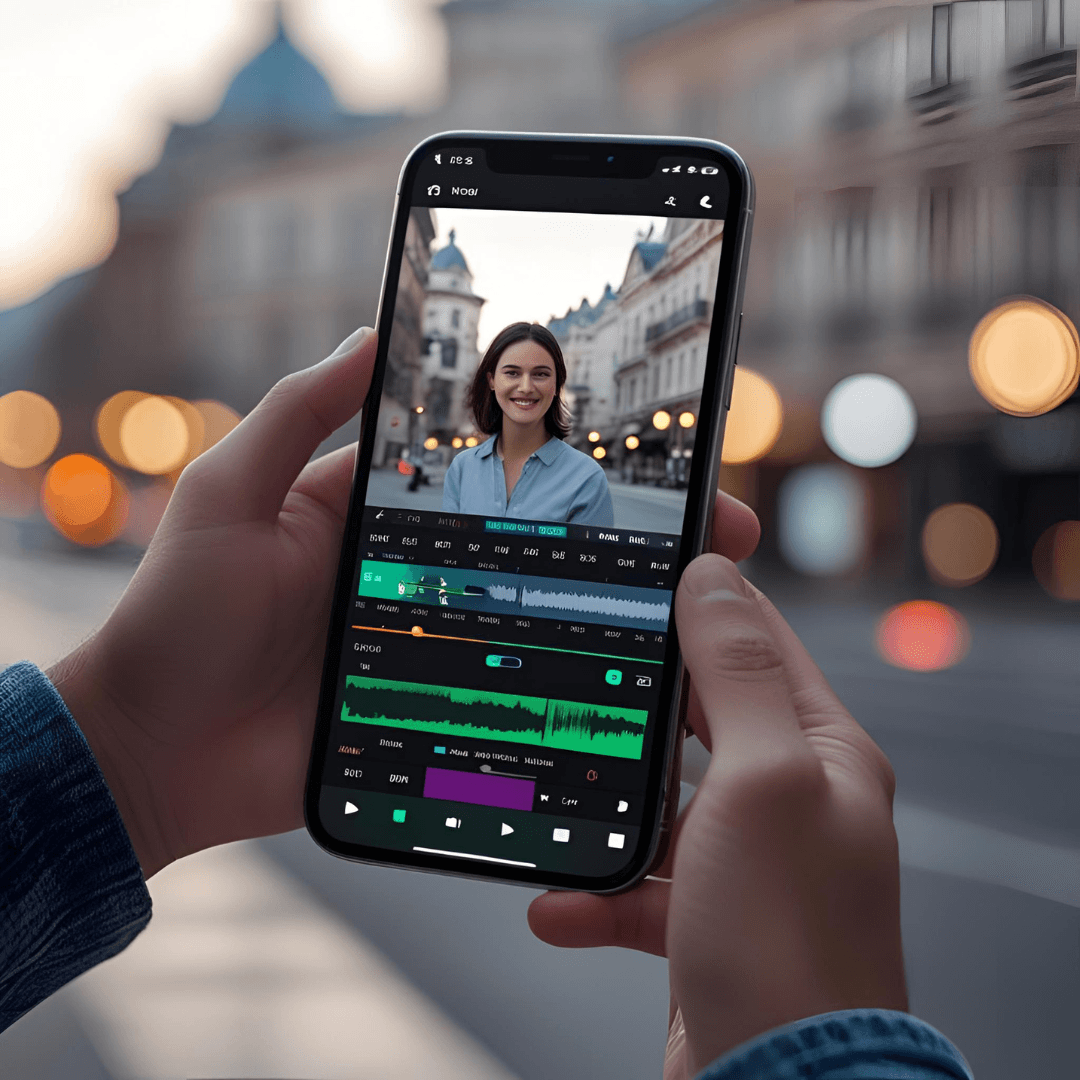
Editing videos on your mobile device like a pro in 2025 is easier than ever, thanks to powerful apps and AI-driven tools. Here’s a step-by-step guide to help you create professional-quality videos using your smartphone or tablet, based on the latest trends and techniques.
1. Choose the Right Video Editing App
Selecting a robust app is the foundation of pro-level editing. Here are some of the best video editing apps for 2025, suitable for Android, iPhone, and iPad users:
- CapCut (Free with Pro options): Ideal for social media content creators, offering AI tools like auto-captions, background removal, and Veo 3 for dialogue and sound effects. It’s user-friendly and integrates seamlessly with TikTok.
- LumaFusion ($30 one-time): A professional-grade app with multi-track editing, keyframing, and 4K support. Perfect for serious editors who want desktop-like control.
- Adobe Premiere Rush (Subscription): Great for beginners and Adobe ecosystem users, with cross-device syncing and motion graphics templates.
- DaVinci Resolve (Free, Studio upgrade $95): Offers Hollywood-level color grading and audio transcription, optimized for iPad’s larger screens.
- iMovie (Free for iOS): Simple and beginner-friendly, perfect for quick edits with templates and green screen effects.
- Videoleap (Free trial, then subscription): Excels in AI features like scene recoloring and voice effects, great for creative edits.
- JoggAI (Free with in-app tools): Streamlines video creation with AI-generated scripts, avatars, and auto-subtitles, ideal for fast, polished content.
Tip: For social media (TikTok, Reels), CapCut or YouCam Video is best for quick, trendy edits. For advanced projects, LumaFusion or DaVinci Resolve offers more control.
2. Prepare Your Device and Footage
Before editing, set up your device and plan your shoot:
- Storage and Battery: Ensure at least 1GB of free space for short clips (more for 4K) and a fully charged phone.
- Stabilization: Use a tripod or gimbal for steady shots.
- Lighting: Shoot in bright, even lighting, preferably natural light, or use lamps angled above your subject. Avoid backlighting.
- Frame Rate: Record at 60 FPS for smooth slow-motion or 30 FPS for standard videos.
- Planning: Create a shot list and test clips to check focus and audio.
- Audio: Use an external microphone with a windscreen for clear sound.
3. Master Basic Editing Techniques
Start with the fundamentals to polish your footage:
- Trim and Cut: Remove unnecessary parts to keep videos concise. Apps like CapCut and iMovie make trimming intuitive.
- Cropping and Framing: Adjust aspect ratios (e.g., 16:9 for YouTube, 9:16 for TikTok) and use the rule of thirds to position subjects.
- Transitions: Use sparingly for narrative purposes, like marking time changes. Apps like KineMaster offer cinematic transitions.
- Export Quality: Set export settings to at least 1080p for sharp visuals. LumaFusion and DaVinci Resolve support 4K exports.
4. Elevate with Advanced Techniques
To achieve a professional look, incorporate these advanced features:
- Multi-Track Layering: Overlay videos, images, text, or audio for complex narratives. LumaFusion and KineMaster excel here.
- Green Screen (Chroma Key): Replace backgrounds with visuals using apps like KineMaster or PowerDirector. Ensure even lighting for best results.
- Slow Motion and Speed Ramping: Create dramatic effects by slowing down key moments or ramping speed. Shoot at 60 FPS for smooth slow-motion. LumaFusion offers precise controls.
- Color Grading and LUTs: Adjust brightness, contrast, and saturation, or apply Look-Up Tables (LUTs) for cinematic looks. DaVinci Resolve and LumaFusion are top choices.
- Picture-in-Picture (PiP) and Split Screen: Overlay secondary footage or show side-by-side comparisons. KineMaster and PowerDirector support this.
- Keyframing: Animate text, graphics, or transitions for dynamic effects. LumaFusion is great for precise keyframing.
- Masking: Hide or reveal parts of a layer for creative composites, available in advanced apps like LumaFusion.
5. Enhance Audio for Immersion
Audio is critical for professional videos:
- Background Music: Choose royalty-free music from app libraries (e.g., CapCut, JoggAI) that matches your video’s tone.
- Sound Effects: Add ambient sounds or effects for realism. Adobe Premiere Rush offers audio ducking to balance music and dialogue.
- Voiceovers: Record directly in apps like CapCut or use AI voices in JoggAI for polished narration.
- Noise Reduction: Use tools like Adobe Audition or app plugins to clean up audio. Test on multiple devices for clarity.
6. Leverage AI Tools
AI is transforming mobile editing in 2025:
- Auto-Captions: CapCut and JoggAI generate accurate subtitles, editable for style and timing.
- Background Removal: Swap backgrounds without a green screen using CapCut’s Cutout tool or JoggAI.
- AI Clipper: CapCut’s AI can trim filler words (“umm”) and suggest edits based on transcripts.
- AI Dialogue and Avatars: JoggAI and CapCut’s Veo 3 create realistic dialogue scenes or animated avatars.
- Scene Recoloring: Videoleap’s AI can shift colors for creative effects, like turning a sunset blue.
7. Optimize for Platforms
Tailor your video for specific platforms:
- TikTok/Instagram Reels: Use 9:16 aspect ratio, hook viewers in the first 3 seconds, and add auto-captions. CapCut’s templates are perfect here.
- YouTube: Edit in 16:9, aim for 1080p or 4K, and use longer cuts for storytelling. LumaFusion is ideal for detailed edits.
- Short-Form Content: Keep videos under 60 seconds with fast cuts and engaging effects.
8. Streamline Your Workflow
- Templates: Use CapCut or Canva templates for quick, polished edits with pre-set transitions and effects.
- Cloud Syncing: Apps like Adobe Premiere Rush and Canva allow editing across devices, ideal for collaboration.
- Organize Files: Label folders for videos, music, and graphics to stay efficient.
- Keyboard Shortcuts: On iPad, use external keyboards with apps like LumaFusion for faster editing.
9. Practice and Experiment
- Learn by Doing: Edit regularly to master tools and develop your style. Recreate pro edits to learn new techniques.
- Get Feedback: Share your work on platforms like X or YouTube and ask for constructive feedback.
- Stay Updated: Follow app updates and tutorials (e.g., YouTube channels like Adnan Skill) for new features and trends.
10. Share and Publish
- Export Settings: Use high-quality settings (1080p or 4K) and check platform requirements. CapCut exports without watermarks for free.
- Direct Sharing: Apps like CapCut and Adobe Premiere Rush allow one-click publishing to YouTube, TikTok, or Instagram.
- Review: Watch your video on different devices to ensure quality before posting.